 Nederlands
 White photo frame
For an instructional video, scroll down. If you're experiencing noise, you can find the steps below to resolve the issue.Step 1
Go to settings. You can do this by tapping the lock icon in the top right corner or the blue circle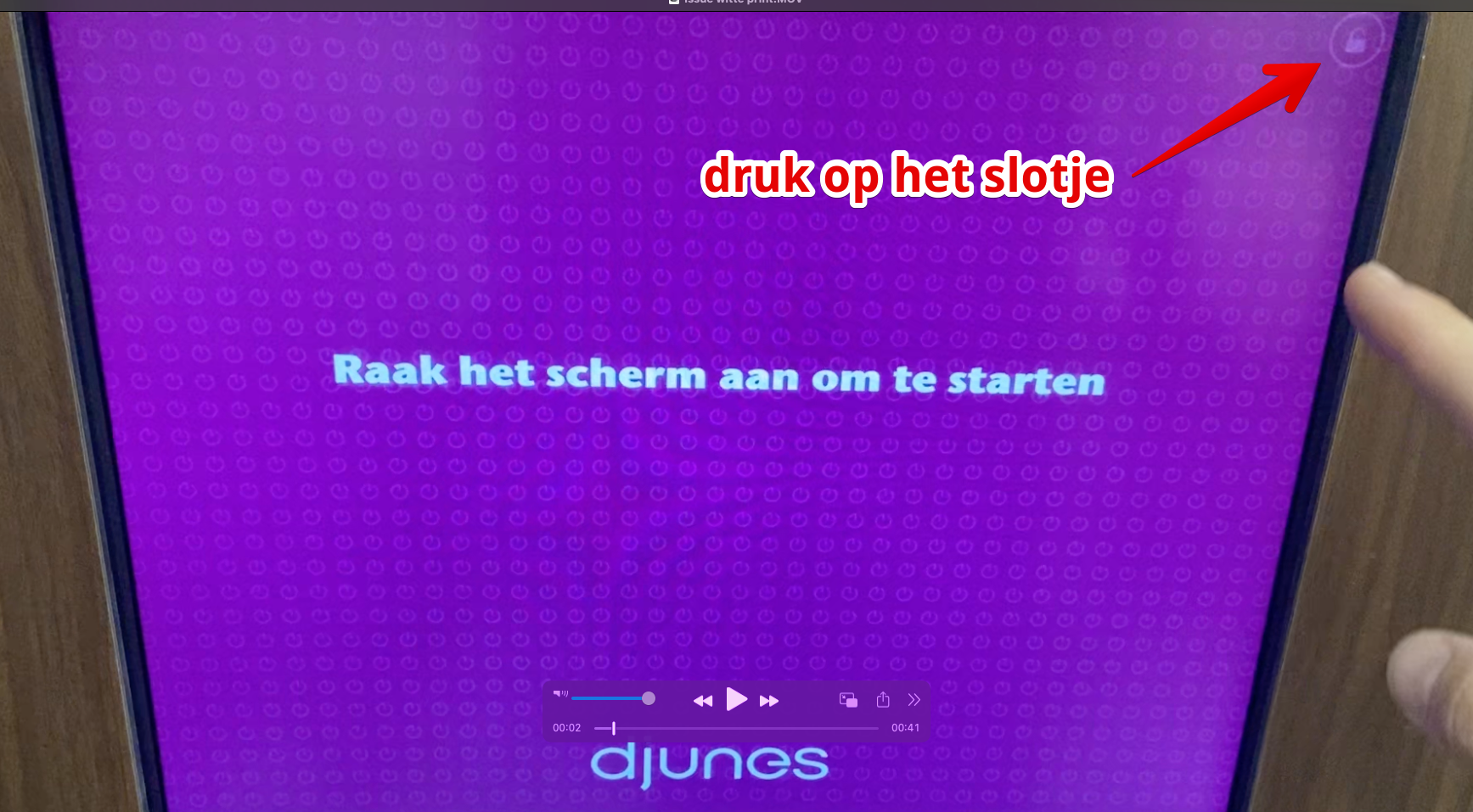
Of
.png)
Stap 2
Druk op print layout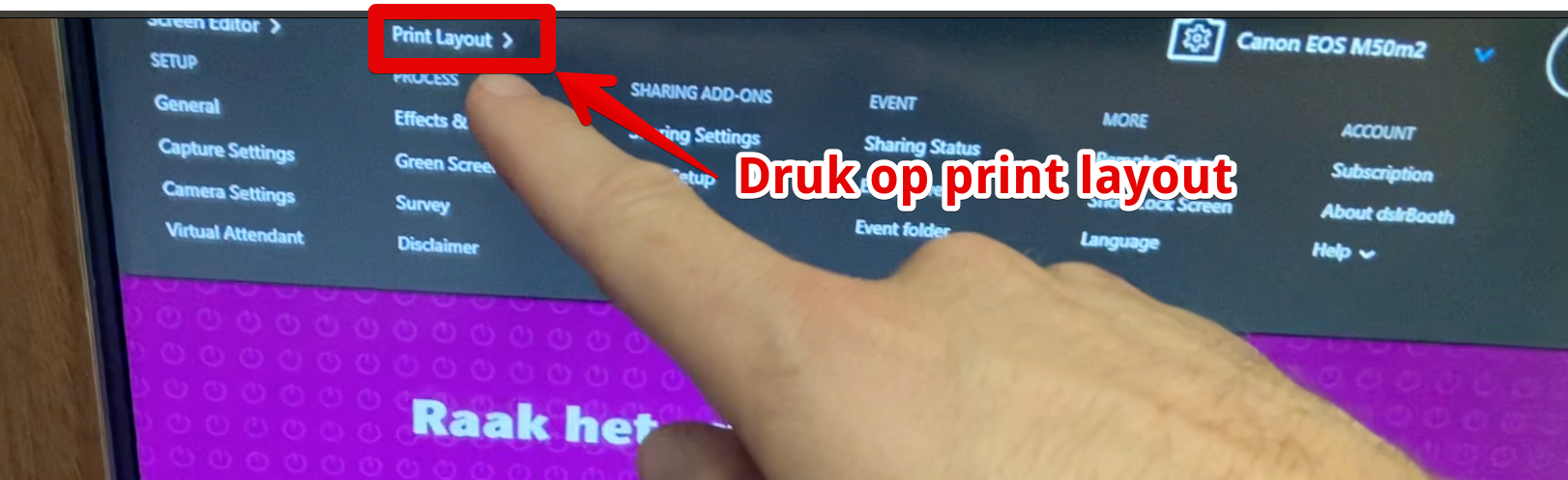
Stap 3
Druk op V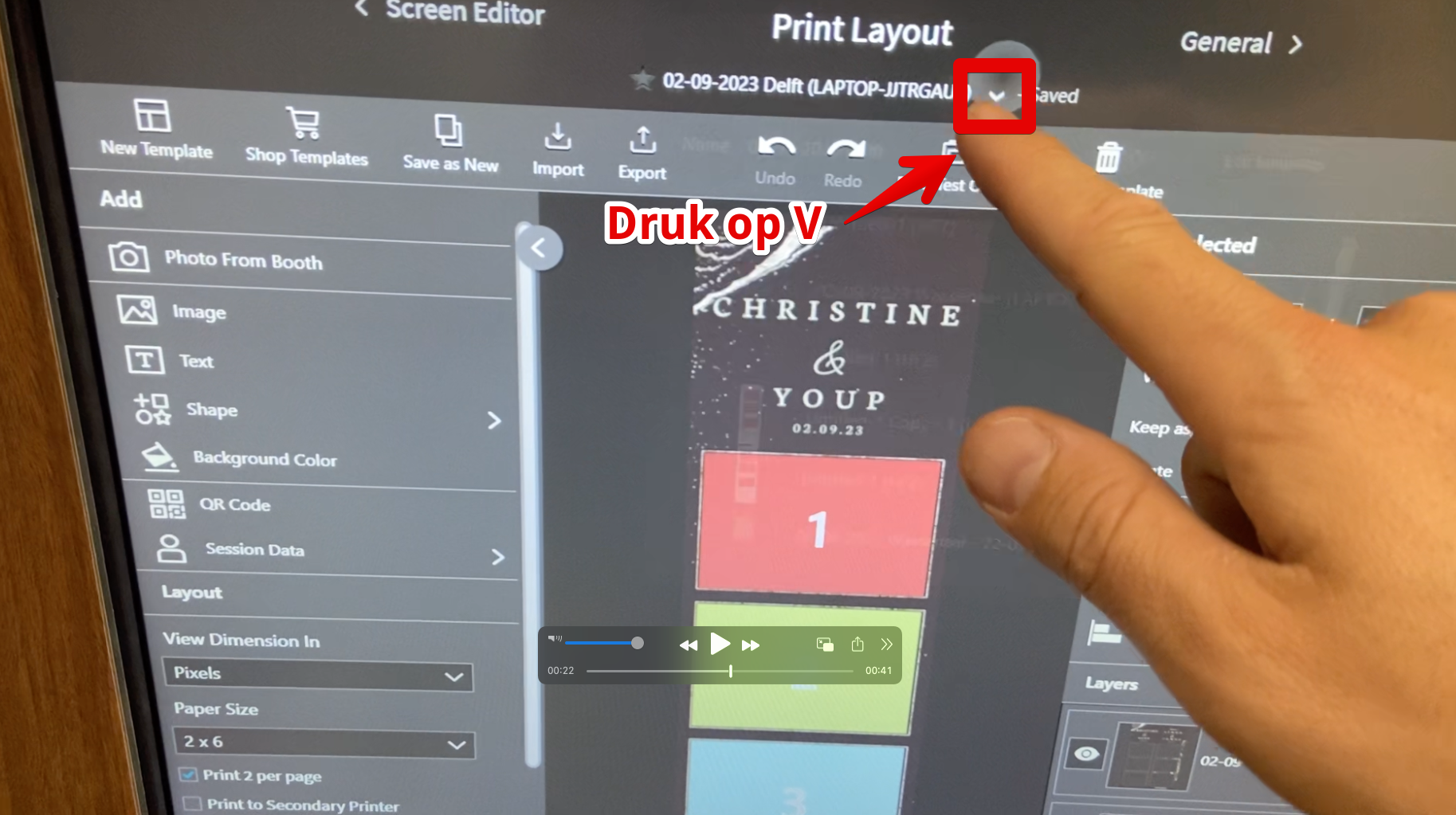
Stap 4
Zoek de juiste datum + woonplaats, selecteer deze en druk weer op V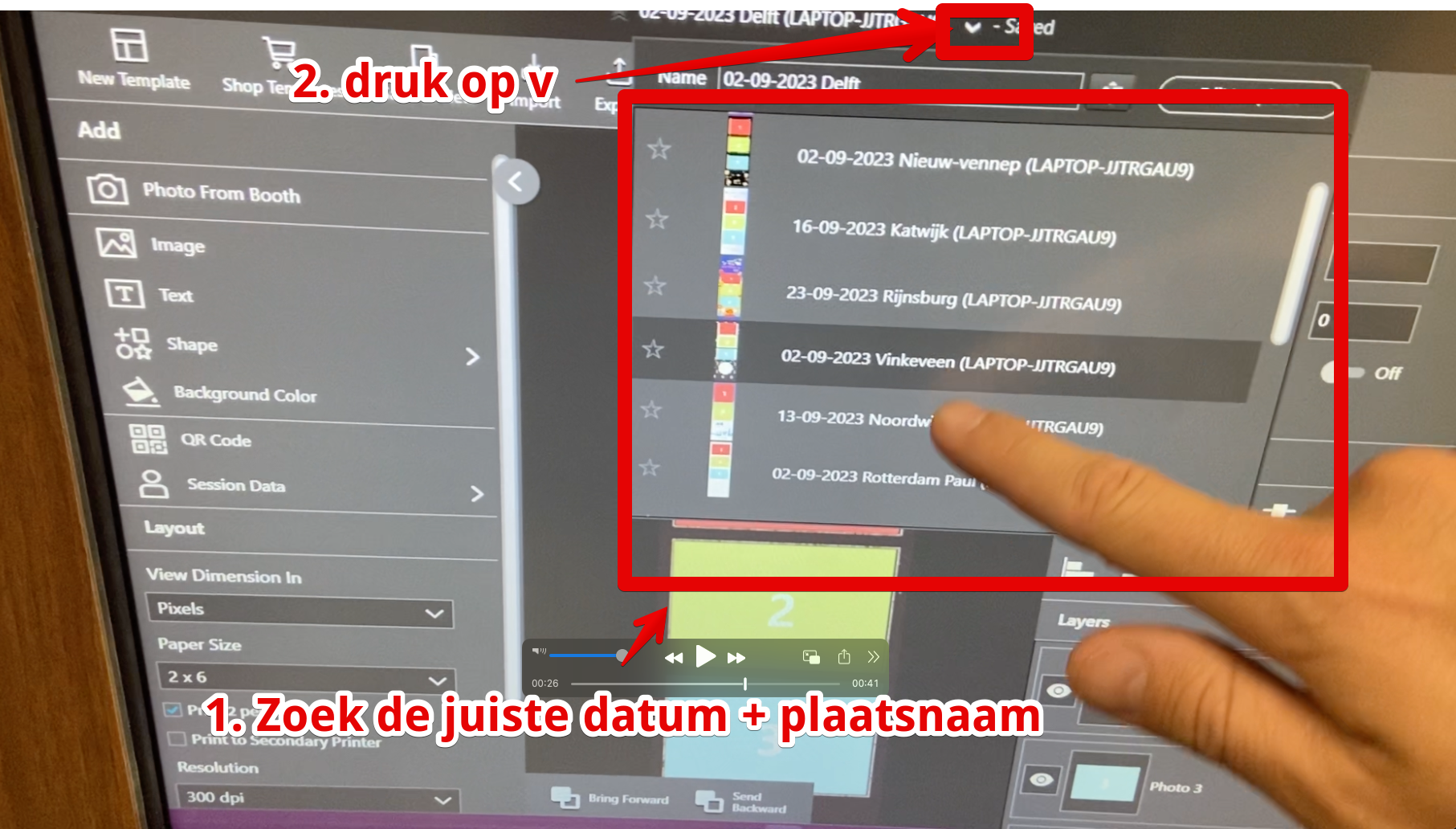
.png)
.png)
.png)
.png)
Wit fotoframe
Voor instructie video, scroll omlaag. Als je in de herrie staat kun je hieronder de stappen vinden hoe je het issue kunt oplossen.Stap 1
Ga naar instellingen. Dat kan door rechtsboven op het slotje te drukken of op het blauwe rondje.Of
Stap 2
Druk op print layoutStap 3
Druk op V
Stap 4
Zoek de juiste datum + woonplaats, selecteer deze en druk weer op VStap 4
Zoek de juiste datum + woonplaats, selecteer deze en druk weer op V
Stap 5
Druk op het blauwe rondjeDruk op launch event
Druk weer op het blauwe rondje
Druk op lock
Uitlegvideo
Preventing this error
This error can be caused by disconnecting the photo booth from the power without shutting down the computer. If you need to disconnect the power, for example, to move the photo booth, first close the software by pressing the blue ball or lock icon in the top right corner, then the cross icon in the top right corner, then the Windows logo at the bottom, and then shut it down. Wait until the computer shuts down, then you can unplug the power cord.
MORE INFO ABOUT MOVING YOUR PHOTOBOOTH
This error can be caused by disconnecting the photo booth from the power without shutting down the computer. If you need to disconnect the power, for example, to move the photo booth, first close the software by pressing the blue ball or lock icon in the top right corner, then the cross icon in the top right corner, then the Windows logo at the bottom, and then shut it down. Wait until the computer shuts down, then you can unplug the power cord.
MORE INFO ABOUT MOVING YOUR PHOTOBOOTH